
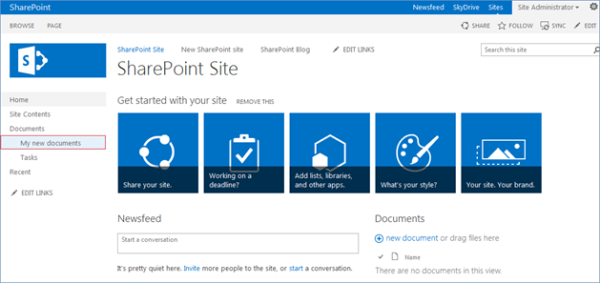
- Login to the SharePoint 2013 site as an administrator.
- Navigate to the list, library, folder or document item for which you want to assign a unique permissions.
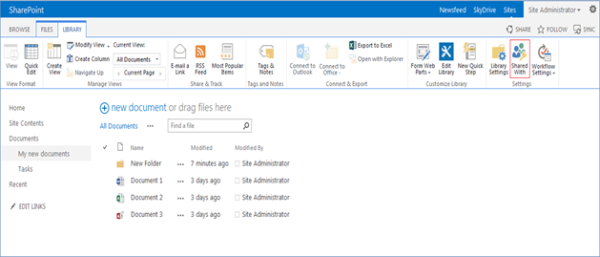
- In the Library tab click on Shared With button in the Settings section (If you want to manage permissions for a folder or documents, select this folder or item and click on Shared With button in the Files tab).
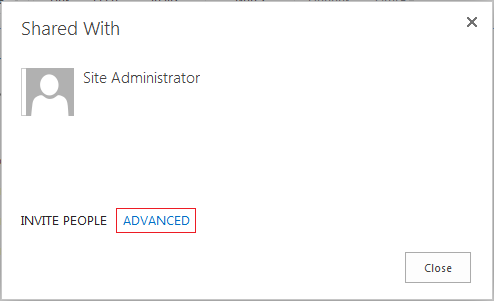
- In the Shared With window click on Advanced.
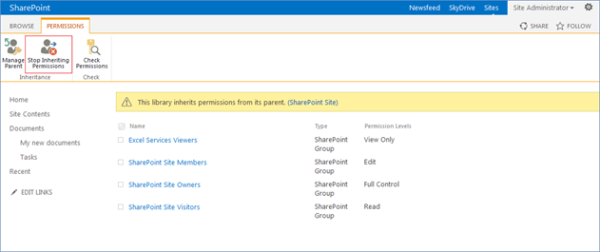
- Click on Stop Inheriting Permissions in the Inheritance section to create unique permissions for a library (list, folder or document item).
- Click OK in the dialog box appeared.
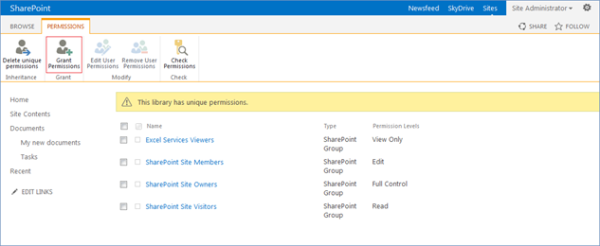
- Click on Grant Permissions.
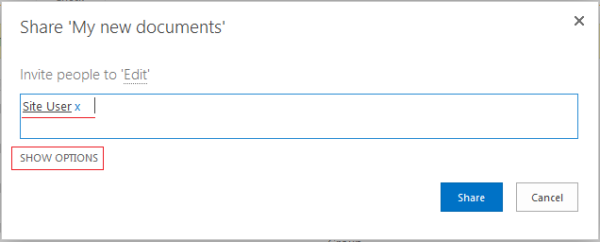
- Enter the email address as username of a user for whom you want to grant permissions in the Invite people box and click on Show Options.
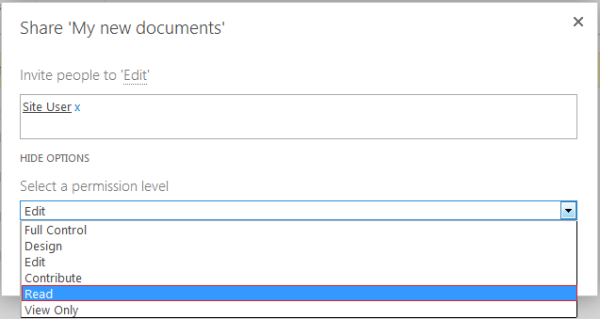
- Select a permissions level for this user from the drop-down menu.
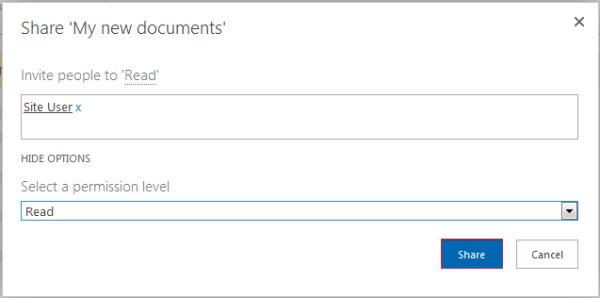
- Click on Share.
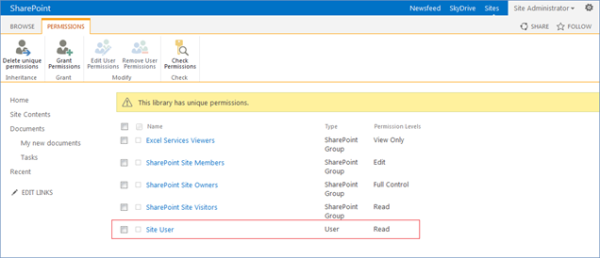
- Now you can see that this user has been granted unique permissions for this library (list, folder or document item).
One Comment
Great read, will recommend this to others.